
OpenClaw is easily loaded on a mobile phone: openclaw-termux installation and use of the full plan
Did you ever think that your phone could become a powerful AI assistant? That's right, I'll teach you how to install OpenClaw AI Gateway on Android today, and make your phone an ACAC.
Why run OpenClaw on the phone?
Cell phones are now becoming more effective, with $67,000 in high-end phones and more processors than they were a few years ago. It's also idle, let's let it play some heat.
There are several advantages to running OpenClaw on the phone:
- It's always available. – You don't need to turn on the computer. The cell phone is on. When you're in bed in the morning, you can ask AI on your cell phone.
- As a backup node – If you have more equipment, your cell phone will be ready as a backup node.
- 24 hours running – Put the charger on the table, a small server that never shuts down.
Start of installation: Termux environmental readiness
The installation of Termux, the Linux terminal emulator on Android, is needed first.
Step 1: Installation of Termux
Go to F-Droid and download the latest version of Termux:
https://f-droid.org/packages/com.termux/
When the installation is complete, a terminal interface is visible.
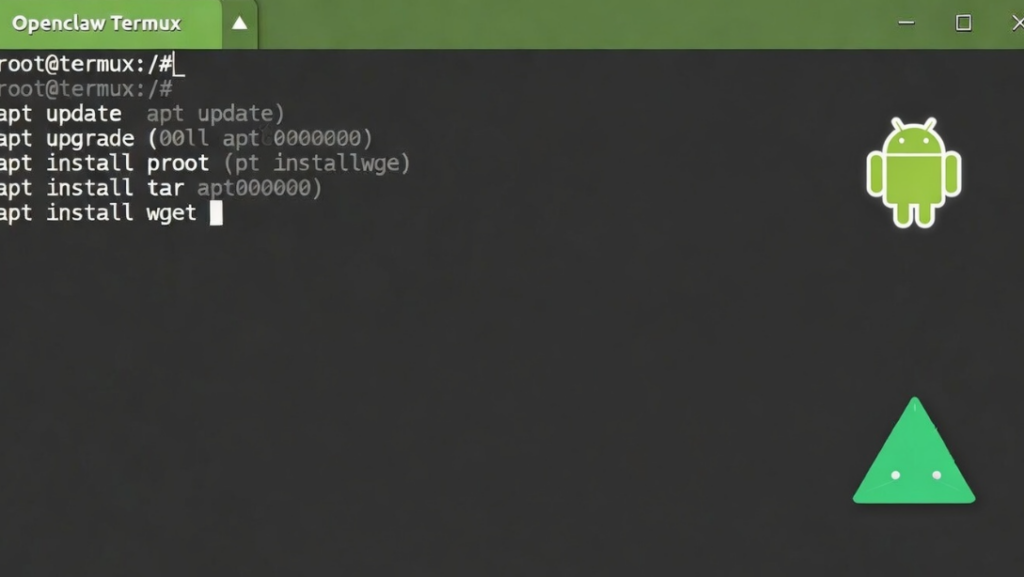
Step 2: Update software sources
Update the package list first:
apt update
apt upgrade -y
This process may take a few minutes and be patient.
Step 3: Base of installation dependency
OpenClaw needs some basic tools:
apt install -y git curl wget vim nodejs npmInstall OpenClaw
Let's start with OpenClaw Core.
Cloning project
cd ~
git clone https://github.com/openclaw/openclaw.git
cd openclaw
Installation Dependence
npm installStart service
npm startThe initial startup will allow for an initialisation configuration, which will be completed by a hint. The default port is 8080.
Three ways to use it.
Once installed, OpenClaw is used on mobile phones in three ways:
1. Web Terminal (most recommended)
Directly on the mobile browser:
http://localhost:8080
Or if under the same WiFi, access to other devices is provided by the IP address of the phone:
http://192.168.x.x:8080
This is your Web dashboard. You can see the list of sessions, status information, and you can talk directly.
2. Termux Terminal
Run directly in Termux:
cd ~/openclaw
npm start
Then we can talk to AI by order.
3. Flying Books/Welks
If you have a robot with a flying book or micro-intelligence, the cell phone will respond automatically. This, however, needs to be accessed on the Internet, which will be detailed in later articles.
Step forward: let the service start.
The service does not start automatically when the cell phone is restarted, and is set up for start-up.
Method 1: Termux initiates itself.
Create a startup script in Termux:
mkdir -p ~/.termux/boot
vim ~/.termux/boot/start-openclaw.sh
Write the following:
#!/bin/bash
cd ~/openclaw
npm start
It then grants enforcement powers:
chmod +x ~/.termux/boot/start-openclaw.shSo every time you open Termux, you start OpenClaw automatically.
Method II: Use of Tasker
If you're used to Tasker, you can create an openClaw starter.
Practical scene sharing
I spent a few months of my life summarizing a few practical scenarios:
- Ask the weather in the morning. – Ray asked me, "How's the weather today?" AI told you.
- Debris time learning – I don't know what I'm talking about on the commuting road. Asking AI anytime is more than 100 degrees.
- Writing Assistant – Write something, get AI to help you continue or change it.
- Berry pie. – You don't want to buy a berries pie? Old phone brushes a Telmux, same as running servers.
Attention
- Cell phone heat. – There'll be heat in the long run, and it's suggested to have a radiator backpack.
- Storage space – Node.js uses comparative space, leaving at least 2GB available.
- Flow consumption – AI conversations generate traffic, use WiFi to save attention.
- Battery lifetime - Long-term plug-in use is damaging to batteries, if not 7x24 hours, and it is proposed to set a charge cap.
Summary
Put OpenClaw on the phone, it's easy for the world. You can also use AI in bed, and you can ask questions in line for the bus. That's the real "PocketAil Assistant."
Next time, teach you how to set up a public web access so that you can control your own AI outside. See you next time!